

Video Testimonials
Watch, tidy up and publish every video testimonial you collect, all from one screen.
Collected a video from a customer? Video Testimonials is where every clip lands, whether a visitor recorded it on your site or you added it yourself. Watch them here, tidy up the details, and publish the good ones so they show up on your pages.
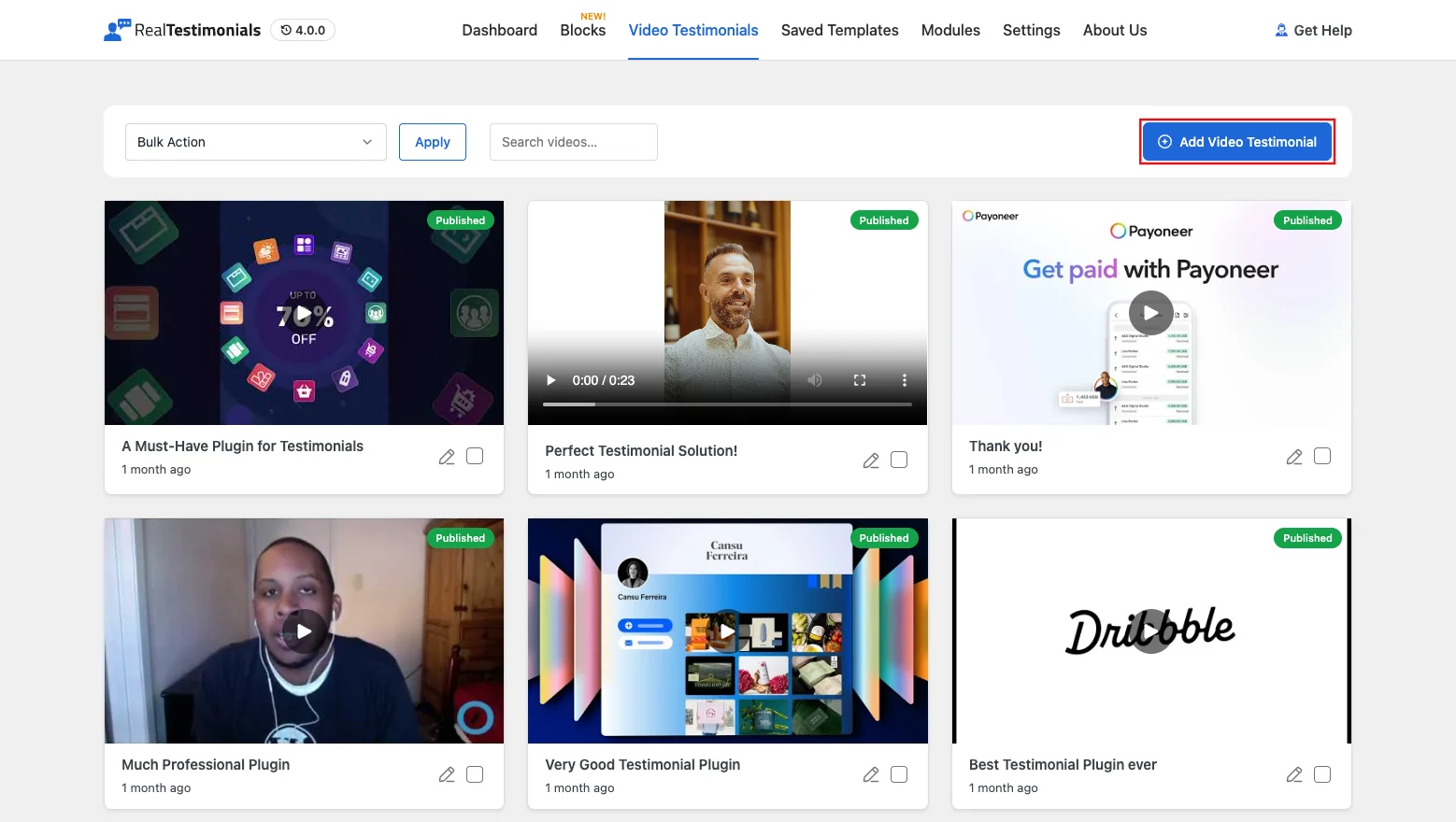
Opening Video Testimonials
- Open the dashboard from Real Testimonials → Getting Started in the WordPress admin sidebar.
- Click Video Testimonials in the top navigation. It sits just after Blocks.
It's always there. You don't need to switch on a module first.
Videos and written testimonials live in the same list
A video testimonial isn't a separate kind of content. It's an ordinary testimonial that happens to have a clip attached, so everything you already know still applies: clips appear under All Testimonials, they can belong to groups, and they carry the same reviewer fields. This screen is just a view built for watching them.
Your first video
Before you've collected anything, the screen shows Start Gathering Powerful Social Proof, a few quick facts about why video testimonials work, and two buttons: Create Video Campaign and Learn How it Works. Both open this documentation page in a new tab. The toolbar with Add Video Testimonial is already there at the top.
There are two ways to get clips in:
- Let visitors record their own. Add the Record Video block to a page. Visitors record straight from their webcam (or upload a file), and the clip arrives here as Pending.
- Add one yourself. Use Add Video Testimonial. It's handy when a customer emails you a file, or when the clip is already on YouTube or Vimeo.
The video grid
Clips show up as cards, nine to a page. Each card gives you:
- The video itself. A clip stored on your site plays right there in the card. A YouTube or Vimeo link shows its thumbnail with a play button, and only loads the provider's player when you press it, so a full page of cards still loads quickly. A link that can't be embedded becomes an Open video link instead.
- A status capsule in the corner of the video: Published, Pending or Draft.
- The title and date, underneath. A clip with no testimonial title shows the reviewer's name instead.
- An Edit button, which reopens the clip's details.
- A checkbox, for the bulk actions below.
"No preview" doesn't mean the video is broken
A card shows a placeholder and the words No preview when there's no thumbnail to show. YouTube provides a thumbnail automatically, but Vimeo and plain file links often don't. The clip still plays. It just has no cover image.
Finding and sorting
Type in the Search videos… box to narrow the grid as you type. It matches the testimonial title and text. Long lists are paged, with Page 1 of 2 [ 12 Items ] and page buttons at the bottom.
Bulk actions
Tick the cards you want, choose an action, then click Apply:
| Action | What it does |
|---|---|
| Publish | Makes the clips live, so any Video Testimonials block can show them. |
| Pending | Sends them back to awaiting review. |
| Draft | Keeps them but hides them from your site. |
| Delete | Removes them permanently, after a confirmation. |
Bulk actions are the only way to delete a clip from this screen. Cards don't have their own delete button, so one stray click can't wipe out a clip.
Deleting is permanent
Delete removes the testimonial itself, not just the clip. If you only want it off your site for now, use Draft instead.
Adding or editing a video
Click Add Video Testimonial (or Edit on a card) and a panel opens with everything the testimonial can carry. Its heading reads Add Video Testimonial or Edit Video Testimonial, so you always know which one you're doing.
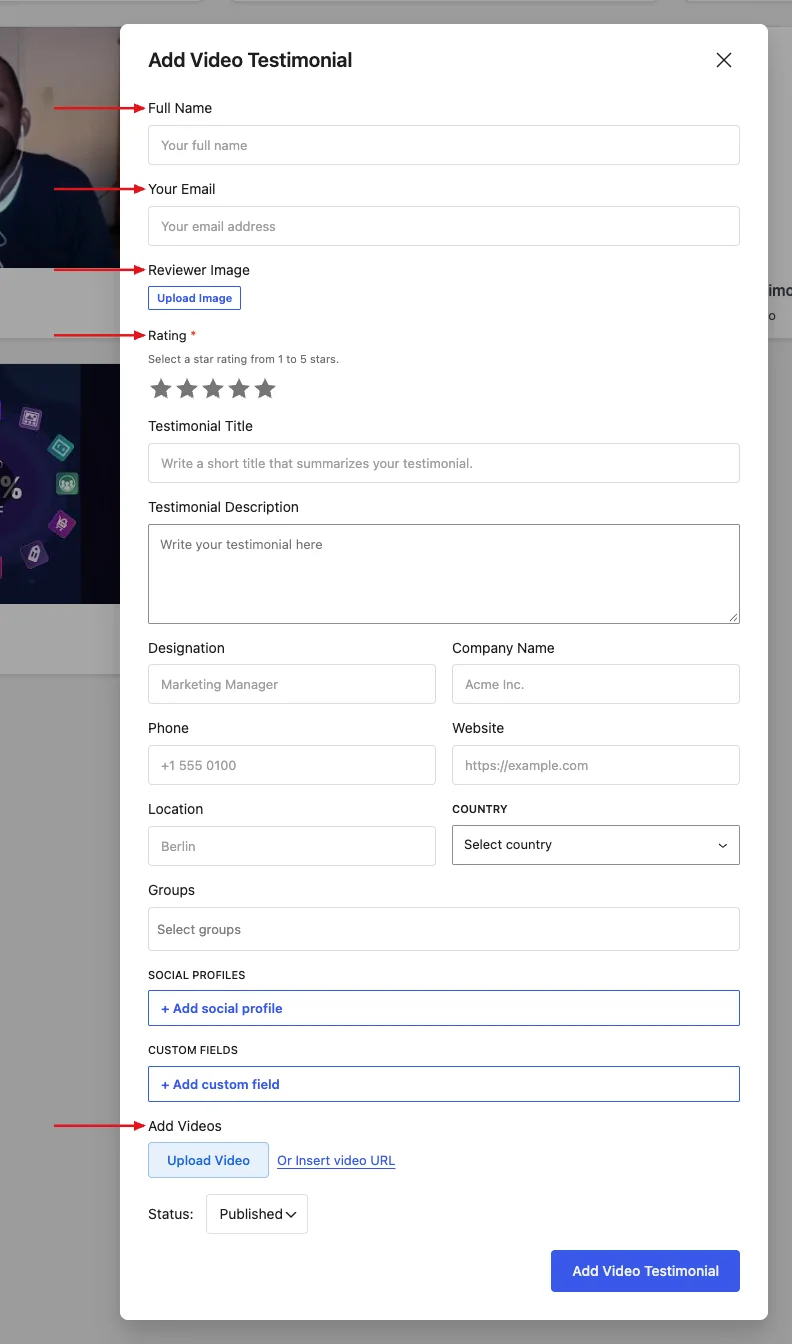
The essentials
| Field | Notes |
|---|---|
| Full Name | Required. The reviewer's name. If you leave Testimonial Title blank, the title stays empty and the card in this grid shows the name instead. |
| Your Email | The reviewer's email address. |
| Reviewer Image | The person's photo, picked from your media library. Separate from the video's thumbnail. |
| Rating | Required. One to five stars. |
| Add Videos | Required. Either Upload Video from your media library, or click Or Insert video URL and paste a link (a YouTube or Vimeo URL, or a direct link to a video file). |
| Status | Published (the default), Pending or Draft. |
The rest, all optional: Testimonial Title, Testimonial Description, Designation, Company Name, Phone, Website, Location, Country, Groups, Social Profiles, and Custom Fields. Groups is a searchable picker: type to find a group and click it to add it as a chip, as many as you need.
Click Add Video Testimonial (or Update Video Testimonial when editing) at the bottom to save. If you try to save without a name, a rating or a video, a message tells you which one is missing, such as "Please select a star rating.", rather than failing silently.
Where the duration comes from
Upload a file and the length is worked out for you. Paste a URL and there's nothing to measure, so no duration is stored. That's normal.
Approving what visitors send you
Clips submitted through the Record Video block arrive with whatever status that block is set to. It's Pending by default, so nothing reaches your site until you've looked at it. Watch the clip here, fix up the title or details if you need to, then set it to Published.
If you'd rather some clips skip the queue, the Record Video block can publish automatically, or publish only when the rating is high enough. That's set per block, in its Form Status & Messages panel.
Related pages
- Record Video block: collect clips from visitors.
- Video Testimonials block: display the clips you've published.
- Add new Testimonial: the written-testimonial equivalent.
- Dashboard overview