

Blocks Overview
Every Real Testimonials block in one place — what each one does and how to choose the right one.
Real Testimonials ships as a library of blocks: the reusable content pieces you add to a page in the WordPress editor. You'll find them grouped under the Real Testimonials category in the block inserter — the panel that opens when you click the + button while editing a page or post.
The library falls into two groups — the same two in this site's sidebar — and this page walks through each one:
- Display Blocks put testimonials on the page: seven layouts, the submission form and two shortcode bridge blocks (a shortcode is a small
[bracketed]code that places saved content). - Child Blocks add filtering, search and pagination on top of a layout.
If this is your first showcase, start with a layout block — that's what actually puts testimonials on the page. Everything else is optional and can be added later.
How to add a block
Every Real Testimonials block goes in the same way:
- Open the page or post you want to edit.
- Click the + button to open the inserter, then search for the block by name (for example, Grid) or scroll to the Real Testimonials category.
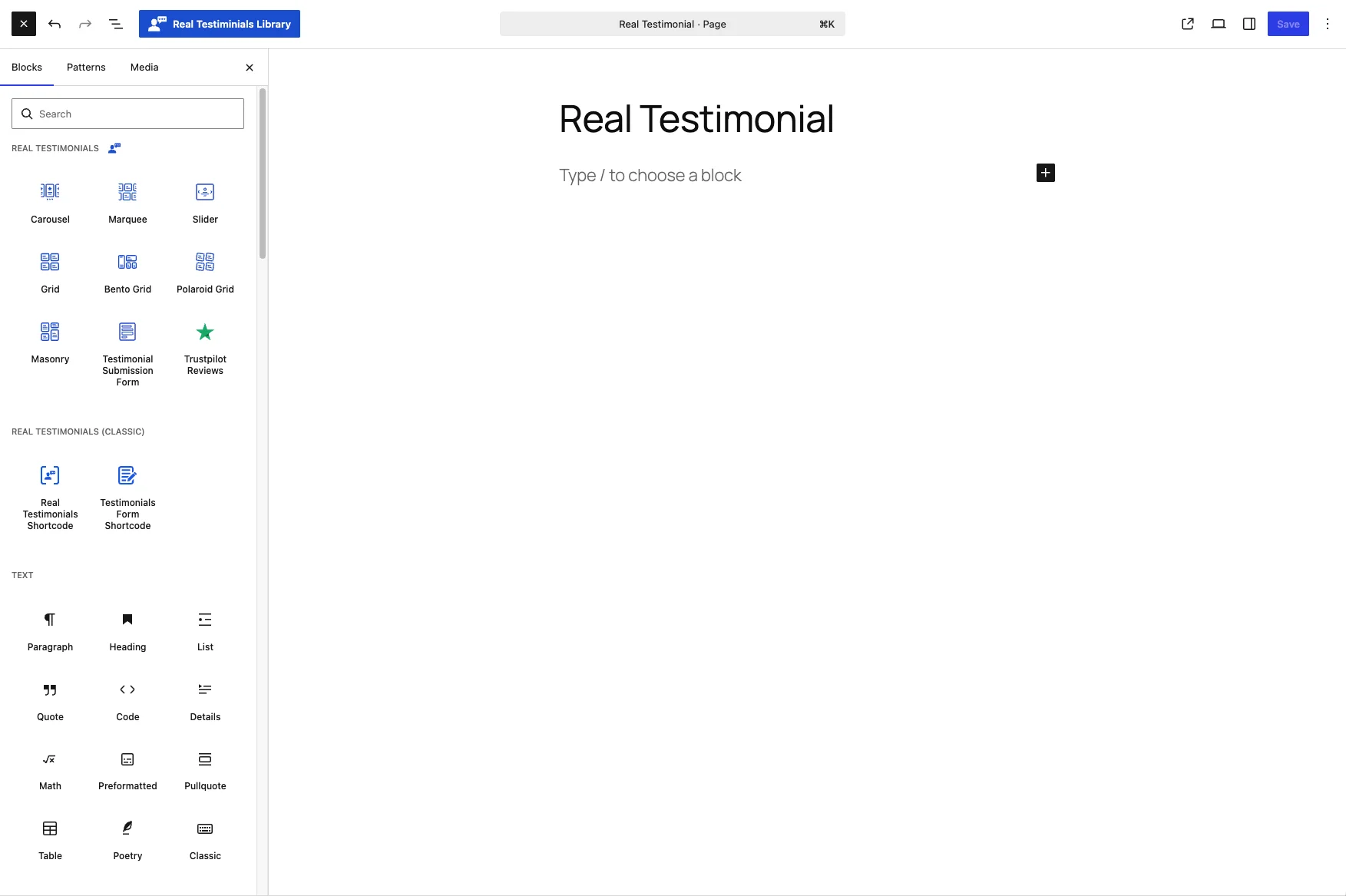
- Click the block to drop it onto the page. A layout block first asks you to pick a ready-made pattern or one of the six card designs — then it fills in with your published testimonials, so you see a live preview as you work.
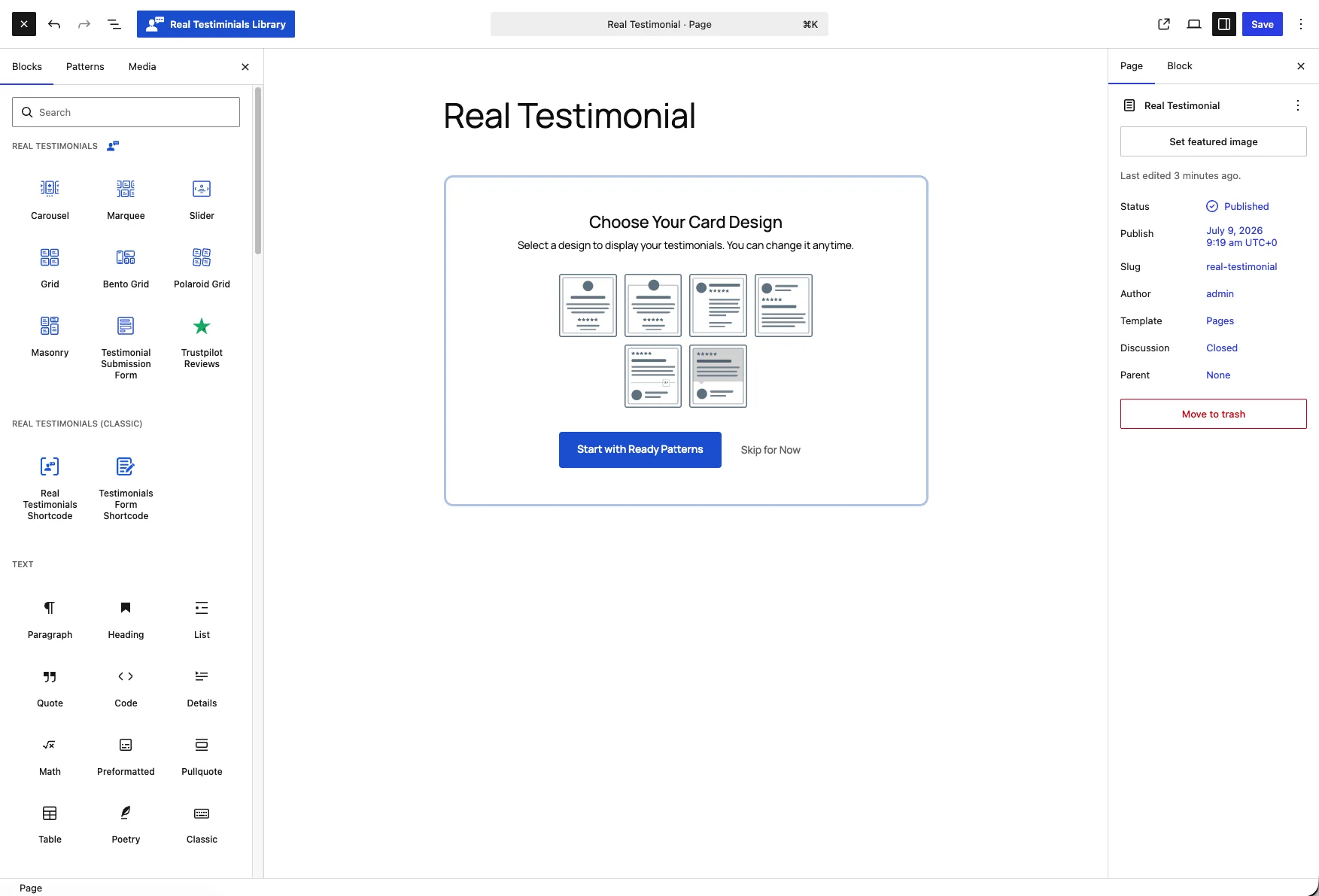
- Adjust its settings in the inspector — the settings panel on the right — then Publish or Update the page.
Display Blocks — put testimonials on the page
These are the blocks you'll reach for most. The heart of the group is seven layout blocks — each pulls in your published testimonials and arranges them on the page, and the only real difference between them is the look and each block's own Layouts panel. Everything underneath (the six card designs, the Query Builder that decides which testimonials show, and the color, typography and spacing controls) is the same across all seven, so you can switch layouts later without redoing your work. Those shared panels are documented once, in full, on the Carousel page. Rounding out the group are the Submission Form and the two shortcode bridge blocks — they put content on the page too, but each has its own settings instead of the shared panels.
| Block | Best for |
|---|---|
| Carousel | A rotating carousel with arrows and dots — Standard, Center and Coverflow styles, plus slide, fade, cube and flip effects. |
| Marquee | A continuous scrolling ticker — horizontal or vertical, with adjustable speed and direction. |
| Slider | Shows one testimonial at a time as a smooth, full-width slider. |
| Grid | An even, responsive, multi-column wall of testimonials — the safe all-purpose choice. |
| Bento Grid | Modern, mixed-size cards arranged in a stylish bento grid. |
| Polaroid Grid | A playful, Polaroid-style photo grid — great when your testimonials have reviewer photos. |
| Masonry | A Pinterest-style layout that adapts to testimonials of different lengths, with no awkward gaps. |
| Submission Form | A customizable front-end form that lets visitors submit their own text, photo or video testimonials — with a star rating, configurable fields and reCAPTCHA spam protection. New submissions arrive as pending for your approval. |
| Real Testimonials Shortcode | Places a saved classic View (a testimonial layout built in the admin area) on a page — picked from a dropdown, no shortcode copying. |
| Testimonials Form Shortcode | Embeds a submission form built the classic way, chosen from a dropdown. |
Choosing a layout
A quick decision guide:
- Limited vertical space, lots of reviews? Carousel rotates through them in one band.
- A lively "wall of love"? Marquee scrolls continuously, no interaction needed.
- One standout quote in a hero? Slider features a single testimonial at a time.
- Just want it to look good everywhere? Grid — the safe all-purpose choice.
- Design-forward landing page? Bento Grid mixes card sizes for a magazine feel.
- Strong reviewer photos? Polaroid Grid frames each one like an instant print.
- Reviews vary a lot in length? Masonry lets every card take just the height it needs.
Whichever you choose, read the Carousel page once — it documents every shared inspector panel in detail, so after that you already know how all seven layouts work. The other block pages cover only what's unique to them and link back to it. And because the shared panels are identical, you can switch layouts later without redoing your styling decisions.
Child Blocks — filtering, search & pagination
Want visitors to filter, search, or page through your testimonials? That's the job of the child blocks. A child block can't stand on its own — it lives inside a Testimonial Group, a container that wraps a layout block and adds controls around it.
One term to know here: Ajax means the page updates part of itself instantly, without a full reload. Every block below that says "no reload" is doing exactly that.
| Block | What it does |
|---|---|
| Testimonial Group | The container that holds a layout block plus its filtering, search and pagination controls. It's added for you automatically — you won't find it in the inserter on its own. |
| Live Frontend Filter | Lets visitors filter testimonials live on the front end. It wraps the two filter blocks below and can combine them with AND or OR logic. |
| Filter by Group | Filters testimonials by group (their category), shown as a dropdown or a button group. |
| Filter by Rating | Filters testimonials by star rating, shown as a dropdown or a button group. |
| Ajax Testimonial Search | A search box that narrows testimonials as visitors type — no page reload. |
| Review Summary | Shows the overall rating, total number of reviews and a quick summary of the feedback — write it yourself or generate it with Google Gemini AI. |
| Ajax Pagination | Breaks a long list into pages — a load-more button or numbered pages, both without a reload. |
You rarely add these by hand. When you switch on Live Frontend Filter, Ajax Testimonial Search, Review Summary, or Ajax Pagination from a layout block's Layouts panel, Real Testimonials automatically tucks your block inside a Testimonial Group and drops the matching child block into place.
Each layout offers the add-ons that make sense for it: the grid-family blocks (Grid, Bento Grid, Polaroid Grid, Masonry) offer all four; the Carousel offers everything except Ajax Pagination; the Slider offers only Review Summary; and the Marquee — which never stops scrolling — has none.
If you're curious how they nest:
Testimonial Group
├─ Review Summary
├─ Live Frontend Filter
│  ├─ Filter by Group
│  └─ Filter by Rating
├─ Ajax Testimonial Search
├─ Main block (Grid, Carousel, …)
└─ Ajax Pagination
Turning blocks on and off
Seeing blocks you know you'll never use? Enable or disable any of them from the Dashboard → Blocks page to keep your inserter uncluttered. A disabled block is off everywhere: it disappears from the inserter and stops showing on any page that already uses it — visitors simply won't see it. Nothing is deleted, though. The block stays in your page content, so turning it back on restores it everywhere, exactly as it was.
Next steps
- New here? Follow the Quick Start to publish your first showcase in a few minutes.
- Need testimonials to show first? See Add New Testimonial.
- Ready to dig into settings? The Carousel page covers the Query Builder, card designs and every shared panel in detail.