

Blocks
The Blocks section of the dashboard lets you decide which Real Testimonials blocks appear in the Gutenberg inserter — the panel that opens when you click + in the editor. Turning off the blocks you don't use keeps that panel tidy and can cut down what the plugin loads on your site.
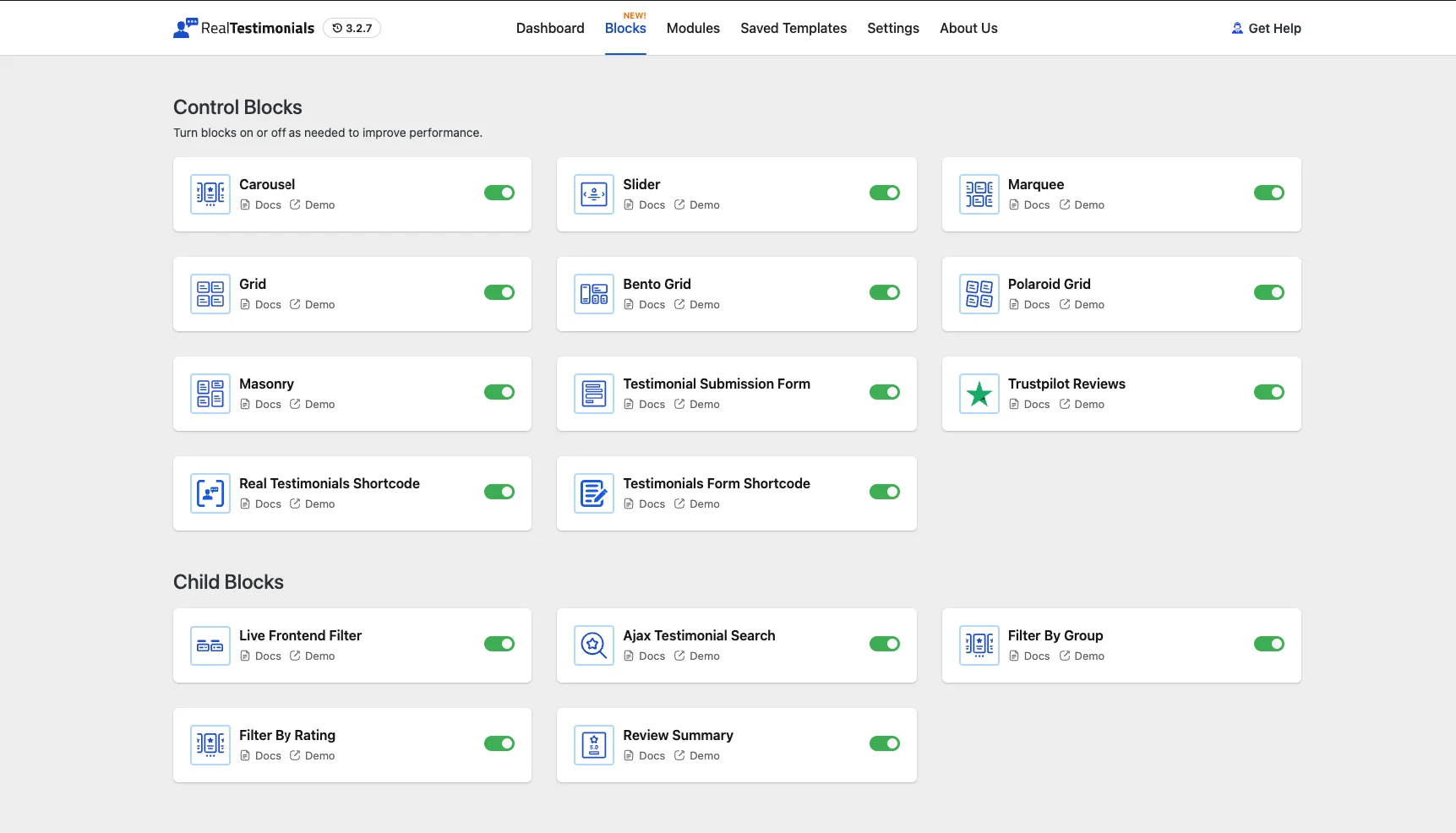
Opening the Blocks section
- Open the dashboard from Real Testimonials → Getting Started (or click the Blocks submenu to land here directly).
- Click Blocks in the navigation.
The page is headed Control Blocks — "Turn blocks on or off as needed to improve performance."
Quick toggles on the Dashboard page
The Testimonials Blocks grid on the dashboard's welcome page controls the same setting for the eight display blocks. Flip a toggle in either place — it's one list.
Block groups
Blocks come in two groups. The main blocks sit right under the page header without a label of their own; scroll down and a Child Blocks heading marks the second group:
| Group | What it contains |
|---|---|
| Main blocks (unlabeled, at the top) | The primary layouts and forms: Carousel, Slider, Marquee, Grid, Bento Grid, Polaroid Grid, Masonry, and Testimonial Submission Form — plus two classic-editor helpers, Real Testimonials Shortcode and Testimonials Form Shortcode. |
| Child Blocks | Helper blocks that pair with a display block: Live Frontend Filter, Ajax Testimonial Search, Filter By Group, Filter By Rating and Review Summary. |
A few things you might expect to see here but won't:
- Ajax Pagination has no card of its own — it's always available, and you control it from the parent display block's Layouts panel instead.
- Testimonial Group (the container block that wraps a display block with its filters) also has no card. It's part of how the other blocks work, so there's nothing to switch off.
Every block starts enabled on a fresh install. So if a block is missing from your inserter, chances are someone turned it off on this page.
Enable or disable a block
Each block appears as a card with its icon, name, an on/off toggle, and quick Docs and Demo links.
- Scroll to the block you want to change within its group.
- Click its toggle.
- That's it — the change saves right away, and a small confirmation message pops up.
When you toggle a block off, it disappears from the inserter and stops showing everywhere it's already used — pages that contain the block won't show it to visitors until you turn it back on. Your content is safe, though: the block's content stays saved in those pages, so re-enabling it brings everything back exactly as it was.
How this maps to the plugin
The dashboard stores your choices in the active_blocks setting. On each request the plugin registers only the blocks in that list — that's why a disabled block leaves no footprint in the editor or on the front end.