

Review Summary
Show an overall rating, total number of reviews and a star-by-star breakdown — with an optional AI-written summary of what customers are saying.
The Review Summary block is the header that builds trust at the top of a testimonials section. Rather than making visitors read every review to size you up, it shows the whole picture up front: your average star rating, how many reviews it's based on, and a breakdown of how many people left 5 stars, 4 stars, and so on. It can also add a "Write a Review" button and even an AI-generated summary paragraph.
It reads from the same testimonials as the display block it sits above, so the numbers always match what's on the page.
How to add it
Review Summary is a child block — a block that lives inside another block rather than one you add on its own. So you don't insert it directly. Instead, turn on Review Summary in a display block's Layouts panel, and the plugin tucks the summary in above your testimonials, reading from the same set of reviews. (Behind the scenes it wraps everything in a Testimonial Group for you.)
What it counts
The numbers come from your own testimonials — the ones managed in WordPress — filtered by whatever the parent group is showing (latest, a group, specific picks or a star-rating filter). Two things worth knowing:
- Only testimonials that have a star rating (1–5) are counted. Unrated ones are ignored, so the "based on N reviews" total can be lower than your total testimonial count.
- This block summarizes the testimonials managed in WordPress — it doesn't pull in ratings from anywhere else.
Settings
The inspector (the settings sidebar on the right) has three panels: Review Summary, AI Summary and Advanced Settings.
Review Summary
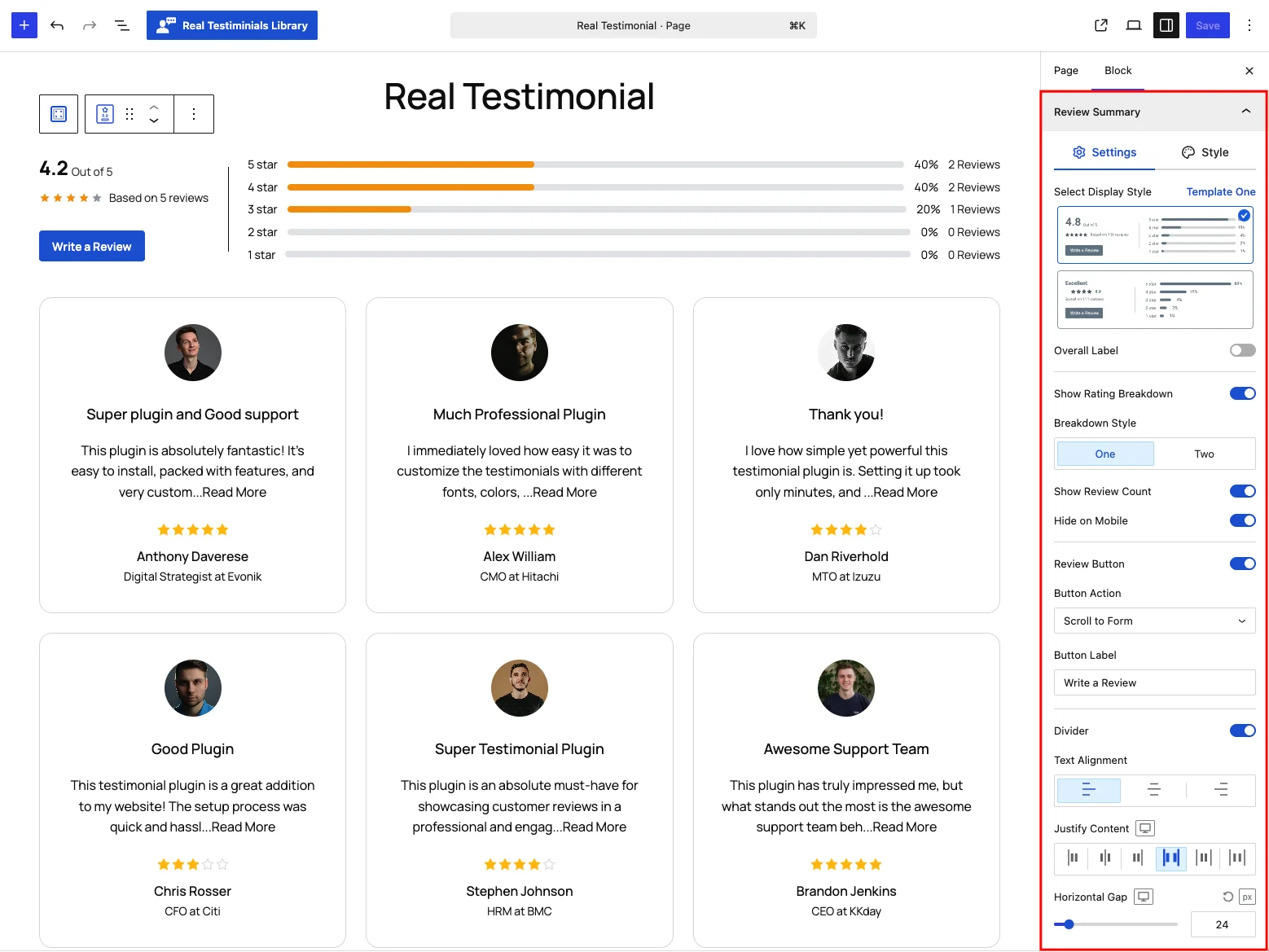
On the Settings tab:
| Control | What it does |
|---|---|
| Select Display Style | Two layouts — Template One (a large average number with stars beside it) or Template Two (a more compact inline rating). Switching templates also flips two other defaults for you: Template One turns Show Overall Label off and Breakdown Style to its first style; Template Two turns the label on and switches to the second breakdown style. You can still override either afterward. |
| Overall Label | Show a word for the rating (like Excellent). Pick Auto — chosen from the average (≥4.5 Excellent, ≥3.5 Good, ≥2.5 Average, ≥1.5 Poor, else Bad) — or a Custom label you type. |
| Show Rating Breakdown | Show the per-star bars (5→1) with a percentage for each. On by default. |
| Breakdown Style | Two visual styles for those bars. |
| Show Review Count | Add the number of reviews next to each breakdown row. |
| Hide on Mobile | Hide the breakdown bars on phones to save space (on by default). |
| Review Button | Show a call-to-action button (see below). On by default. |
| Button Action | What the button does: Open Popup Form (opens a submission form in a popup), Scroll to Form (jump to a form on the page), or Open Custom URL. |
| Button Label | The button text. Default Write a Review. |
| Divider | A dividing line between the summary and the breakdown. |
| Text Alignment / Justify Content / Horizontal Gap | Fine-tune how the pieces line up and how much space sits between them. |
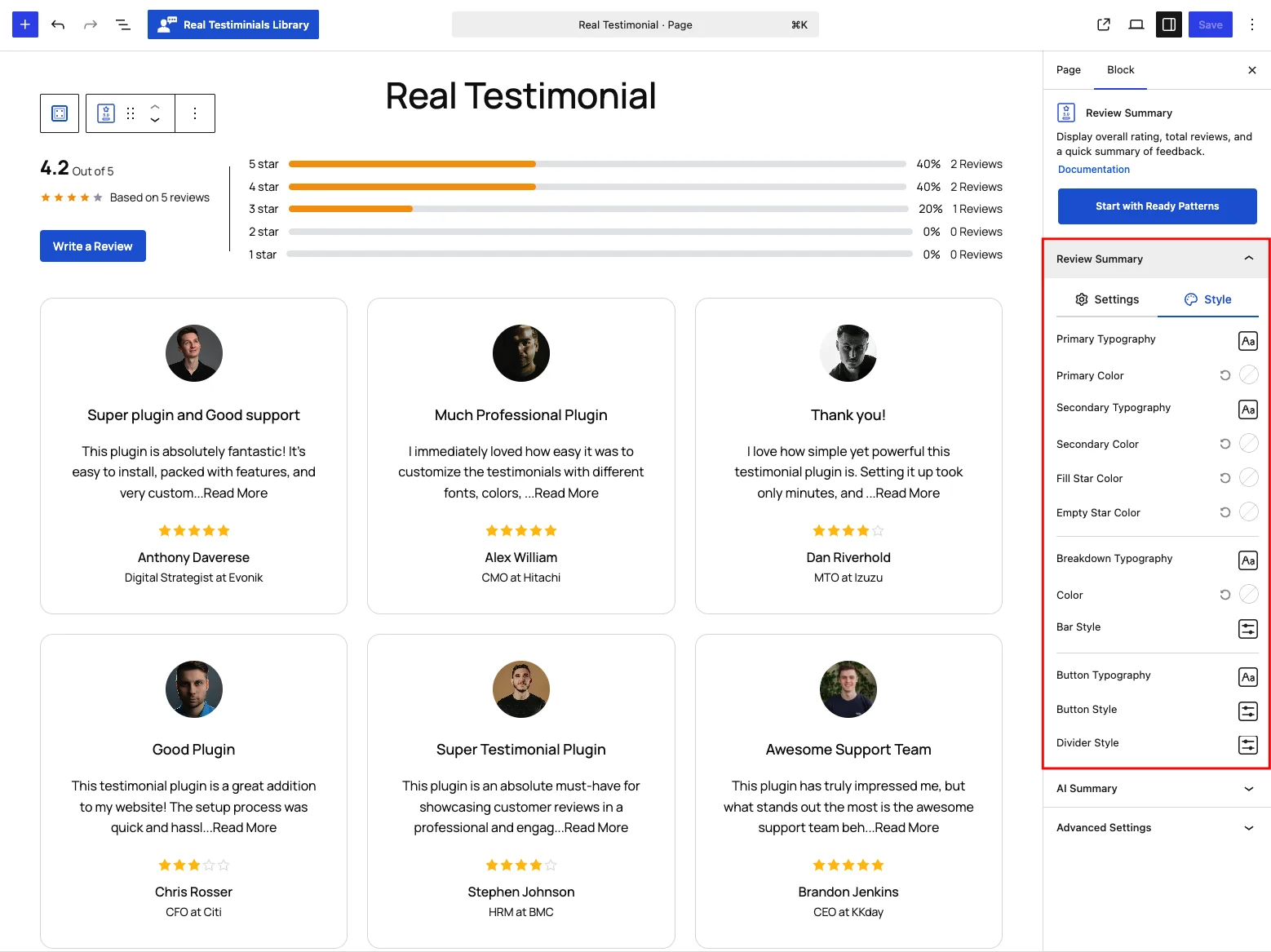
The Style tab styles every piece: the Primary text (the big average number / overall label) and Secondary text ("Out of 5" and the review count), the Fill Star and Empty Star colors, the breakdown text and its bar (fill color, background color and thickness, default 8 px), the button (typography, colors, border, radius, padding), and the divider (style, thickness and color).
The "Write a Review" popup needs a form
Set Button Action → Open Popup Form and the button opens a Submission Form in a popup — but only if one is nested inside the Review Summary block. Scroll to Form and Open Custom URL don't need a nested form.
AI Summary
Turn on AI Summary to add a short, automatically written paragraph (or list) summarizing what your reviewers are saying.
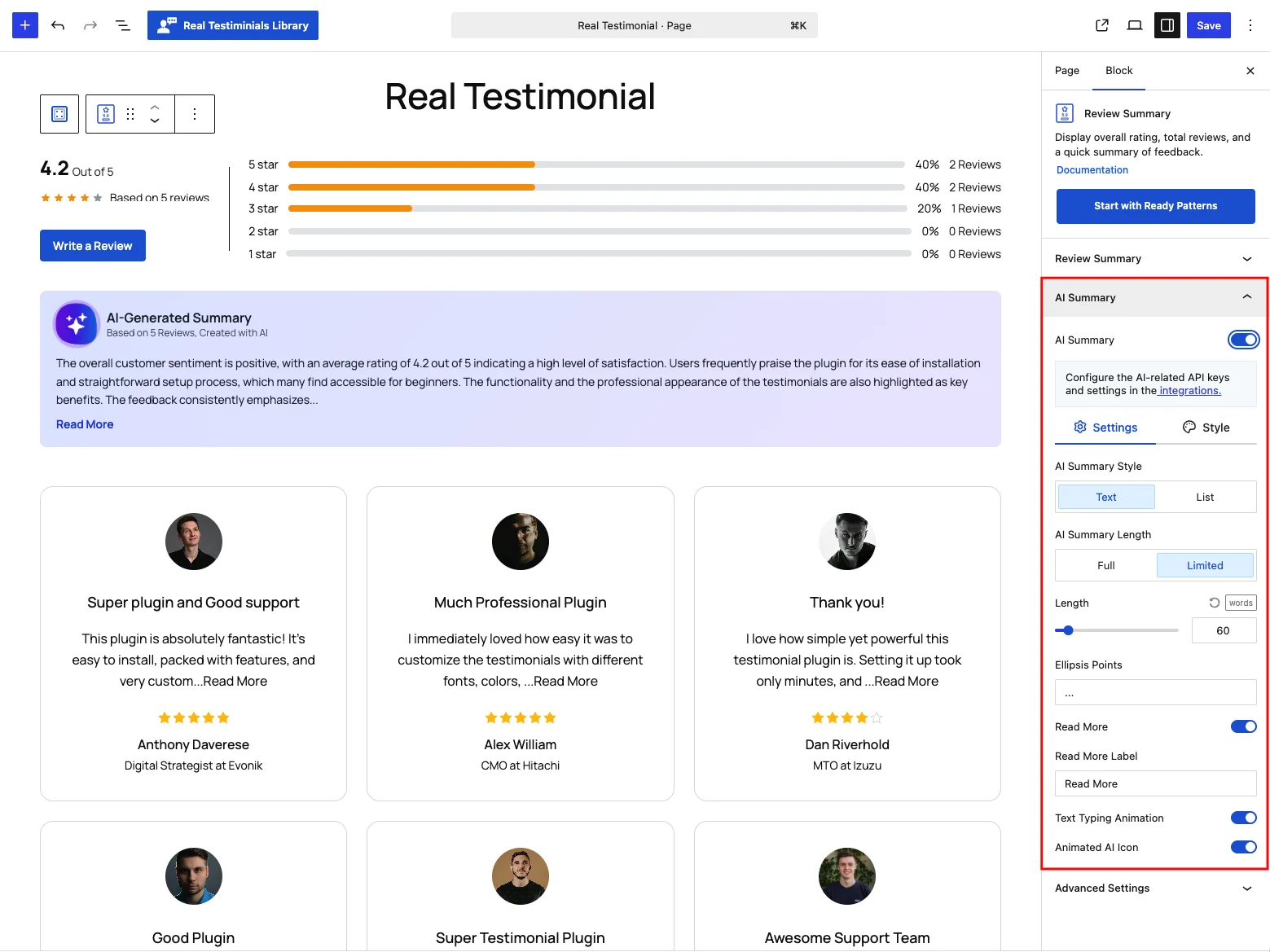
- The text is written by Google Gemini, an AI service. To use it, connect your account and pick a model in Settings → Integrations first — until you do, the AI section doesn't appear on your live site. (The panel reminds you with a link to the integrations page.)
- Settings tab: choose the AI Summary Style (a paragraph of Text or a bulleted List) and the AI Summary Length — Full, or Limited to a word count (default 60 words) with editable Ellipsis Points (default
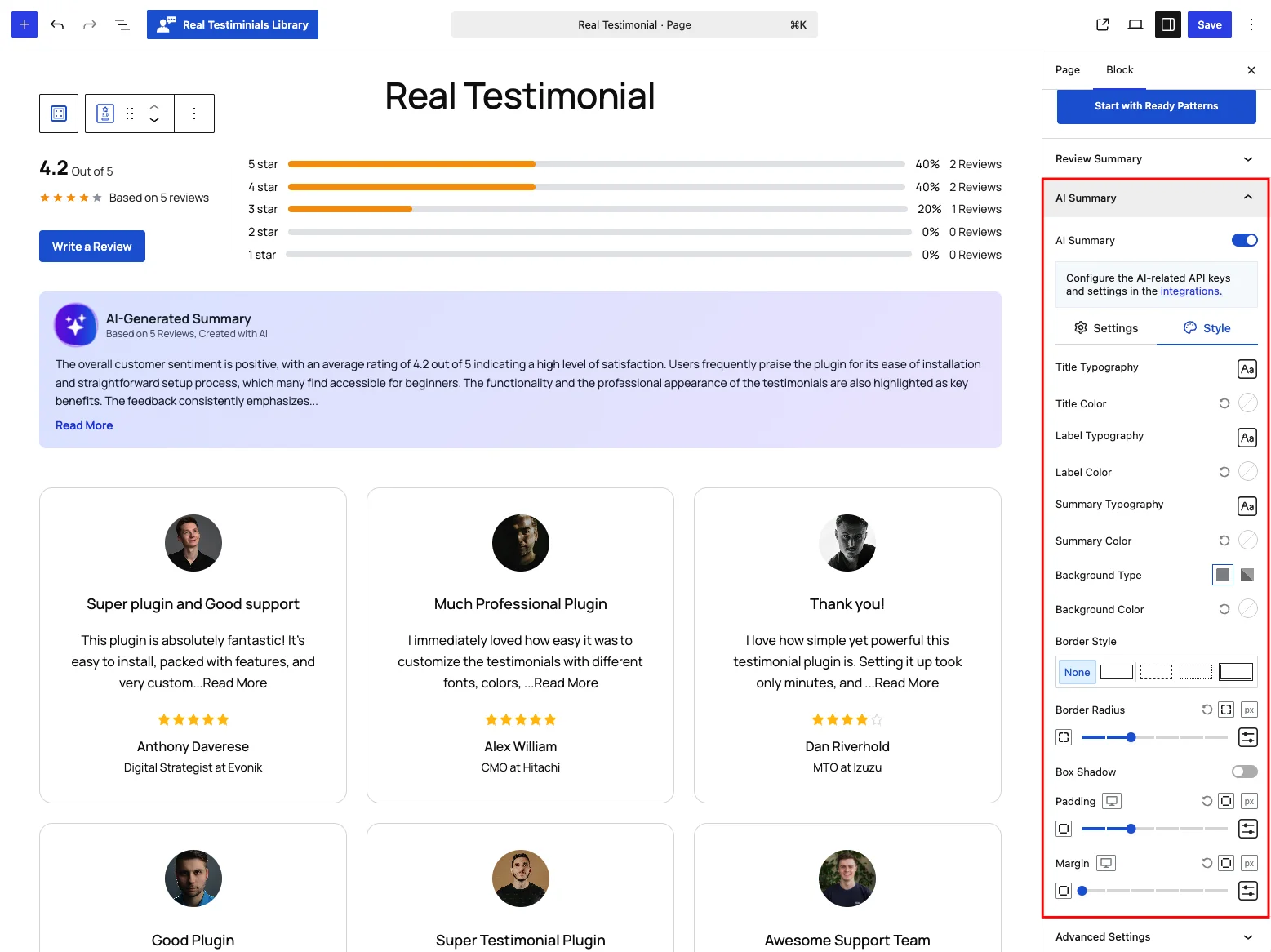
...) and an optional Read More link whose label you can change. Round it off with a Text Typing Animation and an Animated AI Icon. The section heading (default AI-Generated Summary) is fixed — there's no field to change it. - Style tab: typography and color for the title, label and summary text, plus the box's background, border, radius, shadow, padding and margin.
AI summaries are cached
Once written, a summary is saved so the block doesn't have to regenerate it every time the page loads. It refreshes when your reviews change or the saved copy is cleared. Turn it on only once you have enough reviews for the summary to be meaningful.
Advanced Settings
The shared responsive-visibility and custom CSS controls, plus the block's own background, border and spacing — see Advanced Settings.
Tips
- Place the Review Summary above a Grid or Bento Grid for a classic "reviews" header.
- The breakdown bars double as a trust signal — keep them visible even when most reviews are 5-star, since a lopsided-toward-5 chart reads as authentic.
- Pair the Write a Review button with a nested Submission Form so visitors can add their own review without leaving the page.