

Integrations
The Integrations section is where Real Testimonials connects to other tools: Google Gemini for AI review summaries, and six page builders where you can reuse your block layouts.
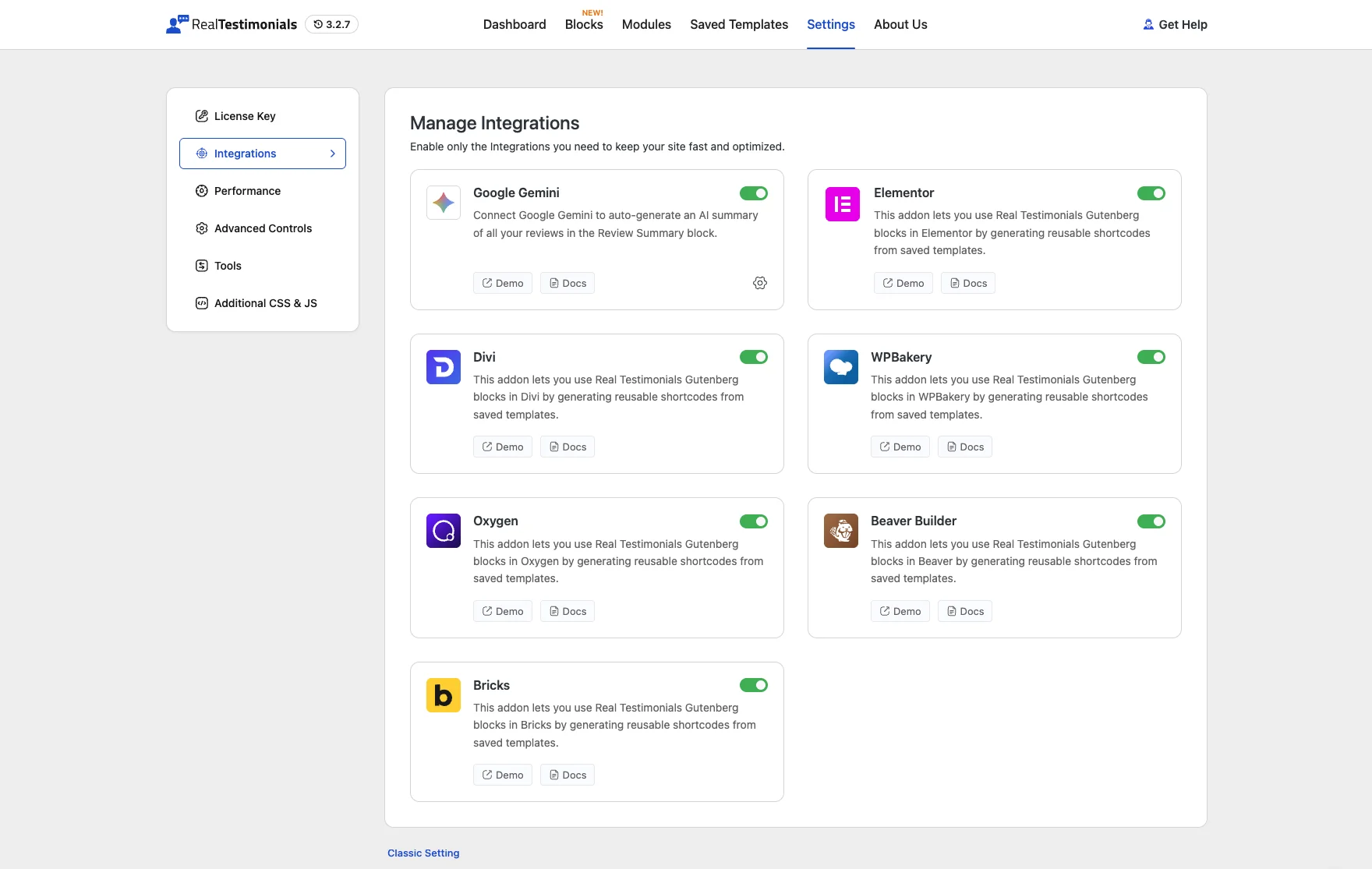
Opening Integrations
- Open the dashboard from Real Testimonials → Getting Started.
- Click Settings in the navigation.
- Click the Integrations tab in the sidebar.
The tab is headed Manage Integrations. Each integration is a card with an on/off toggle and quick Demo and Docs links, just like the Modules page. There's no Save button on this tab — toggles save the moment you click them, and a small confirmation message pops up.
Google Gemini (AI)
The Google Gemini integration powers the AI Summary feature in the Review Summary block. When enabled, the block can generate a concise, readable summary of all your reviews automatically — no manual writing required.
What it does
With Gemini connected, the Review Summary block's AI Summary option:
- Reads all testimonials on the page
- Identifies common themes, praises, and concerns
- Generates a human-style paragraph or bullet-point summary
- Updates automatically when new reviews are added
Perfect for "What customers are saying" sections, hero summaries, or executive dashboards where you need a quick overview without reading every review.
Setting up Google Gemini
Toggle Google Gemini on in the Integrations tab.
Click the settings icon on the integration card.
Configure the options:
- Model — Choose which Gemini model to use:
- Gemini 3.1 series — Flash-Lite (fastest), Pro Preview, Flash
- Gemini 2.5 series — Pro (most capable), Flash
- Gemini 1.5 series — Pro, Flash (default), Flash-8B (lightest)
- API Key — Enter your Gemini API key from Google AI Studio.
- Model — Choose which Gemini model to use:
Click Save Changes in the popup. (Reset closes the popup without saving — it asks you to confirm first.)
Getting an API key
Your API Key is a credential that lets the plugin talk to Google's AI service:
- Visit aistudio.google.com/app/apikey
- Sign in with your Google account
- Click Create API Key
- Copy the key (starts with
AIza...) - Paste it into the integration settings
Google offers a free tier with generous limits. Check Google AI Studio for current pricing and quotas.
Which model to choose
- Flash models — Faster, cheaper, great for straightforward summaries. Good for most sites.
- Pro models — More capable, better at nuanced language and complex themes. Use for professional sites where summary quality matters most.
- Flash-8B — The lightest option, fastest and least expensive. Good for high-traffic sites or simple use cases.
What happens when you disable it
- The AI Summary option disappears from the Review Summary block
- Existing AI summaries remain visible on the front end (they're saved content)
- No API calls are made — zero cost from the moment you toggle off
When to disable it
Disable if:
- You don't use the Review Summary block's AI feature
- You prefer to write summaries manually
- You want to control AI costs on a high-traffic site
Elementor
The Elementor integration lets you use Real Testimonials layouts inside the Elementor page builder. Design once with blocks, reuse anywhere — whether you're in Gutenberg, Elementor, or both.
How it works
- Build a layout with Real Testimonials blocks in the block editor.
- Save it as a template via Saved Templates.
- Insert in Elementor using the Real Testimonials widget — it renders your exact layout.
What the integration adds
- A dedicated Real Testimonials widget in Elementor's element library
- Template selection dropdown — pick any saved template
- Live preview in the Elementor editor
- Full styling controls within Elementor
What happens when you disable it
- The Real Testimonials widget vanishes from Elementor
- Existing Elementor pages using the widget keep working — they just load the saved layout
- No Elementor-specific code loads (tiny performance win)
When to disable it
Disable if you never use Elementor or always build pages in Gutenberg. If you mix builders or your team uses Elementor, keep it enabled.
Divi
The Divi integration connects Real Testimonials to the Divi Theme Builder and Divi pages. Reuse your testimonial layouts across both builders seamlessly.
How it works
- Create and save a template using Real Testimonials blocks.
- In Divi, add the Real Testimonials module to your layout.
- Select your template from the dropdown.
- Customize in Divi — the module exposes style controls for quick adjustments.
What happens when you disable it
- The Divi module disappears from the module list
- Existing Divi pages with the module continue rendering
- No Divi-specific scripts load
When to disable it
Disable if you don't use Divi. If you're a Divi user or build client sites with Divi, keep it on.
WPBakery
The WPBakery integration adds a Real Testimonials element to the WPBakery page builder (formerly Visual Composer).
How it works
- Save a block layout as a template.
- In WPBakery, add the Real Testimonials element from the content elements list.
- Choose your template and configure display options.
- Save and preview — your layout appears inside the WPBakery page.
What happens when you disable it
- The WPBakery element is removed from the element list
- Existing pages with the element keep working
- No WPBakery overhead on sites that don't use it
When to disable it
Disable if you've moved to Gutenberg or another builder. Legacy sites using WPBakery need it enabled.
Oxygen
The Oxygen integration lets you drop Real Testimonials layouts into Oxygen-built pages without leaving the builder.
How it works
- Save a template from your block layout.
- In Oxygen, add the Real Testimonials component.
- Select the template and adjust positioning.
- Style visually — Oxygen's controls work with the testimonial output.
What happens when you disable it
- The Real Testimonials component disappears from Oxygen's add panel
- Existing Oxygen pages with the component keep rendering
- Clean separation for Oxygen-free sites
When to disable it
Disable if you don't use Oxygen. If Oxygen is your builder of choice, keep it enabled.
Beaver Builder
The Beaver Builder integration adds a Real Testimonials module to the Beaver Builder content panel.
How it works
- Save a layout template in Real Testimonials.
- In Beaver Builder, drag the Real Testimonials module into your row.
- Pick your template from the module settings.
- Preview live — your testimonials appear inside the Beaver layout.
What happens when you disable it
- The module vanishes from Beaver Builder
- Existing Beaver Builder pages keep working
- No Beaver Builder hooks run on non-Beaver pages
When to disable it
Disable if Beaver Builder isn't part of your stack. If you or your clients use it, keep the integration on.
Bricks
The Bricks integration brings Real Testimonials layouts into the Bricks builder.
How it works
- Create a template from your Real Testimonials blocks.
- In Bricks, add the Real Testimonials element.
- Select your template and configure display settings.
- Use Bricks' visual controls for positioning and styling.
What happens when you disable it
- The Real Testimonials element disappears from Bricks
- Existing Bricks pages with the element continue to work
- No impact on non-Bricks pages
When to disable it
Disable if you don't use Bricks. Keep it enabled if Bricks is part of your workflow.
Related pages
- Settings — other configuration options.
- Modules — plugin-wide feature switches.
- Saved Templates — how to save and reuse layouts.
- Review Summary → AI Summary — the AI feature powered by Google Gemini.