

Saved Templates
Designed a testimonial layout you're proud of? Saved Templates let you keep it and reuse it later — on another page, or even on another site. It's the fastest way to keep testimonial sections consistent without rebuilding them each time.
Opening Saved Templates
- Open the dashboard from Real Testimonials → Getting Started (or click the Saved Templates submenu to land here directly).
- Click Saved Templates in the navigation.
Don't see this section?
The Saved Templates section only appears while the Saved Templates module is enabled. If it's missing from your navigation, turn the module on first.
Creating a template
- Click Add New Template at the top right of the Saved Templates screen.
- The block editor opens with the block inserter ready — build your testimonial section here just as you would on a page: add a display block (or a whole Testimonial Group), pick a card design, set up the query.
- Give the template a clear title and Publish it.
The template appears in the list — with its own shortcode — as soon as it's saved, even as a draft. A draft's shortcode outputs nothing on the front end; publish the template before visitors can see it. You can also start from a ready-made layout — the Ready Patterns Library works inside the template editor too.
Grab the shortcode right in the editor
While you're editing a template, open the editor's settings sidebar — a Saved Templates panel shows the template's shortcode with a one-click copy chip, so you don't have to go back to the dashboard list to grab it.
Using a saved template
Every template gets a shortcode like [sp_saved_template id="123"]. A shortcode is a small bracketed snippet that WordPress swaps out for real content wherever you paste it — so a design you built with blocks isn't stuck in the block editor:
- In Elementor, Divi, WPBakery, Oxygen, Beaver Builder or Bricks, paste it into a text/shortcode element (with the matching integration enabled).
- In the classic editor, a widget, or a theme's shortcode-friendly area, paste it directly.
And because the shortcode points at the template, editing the template later updates every page that uses it. Change the card design once, and it changes everywhere.
Managing templates from the dashboard
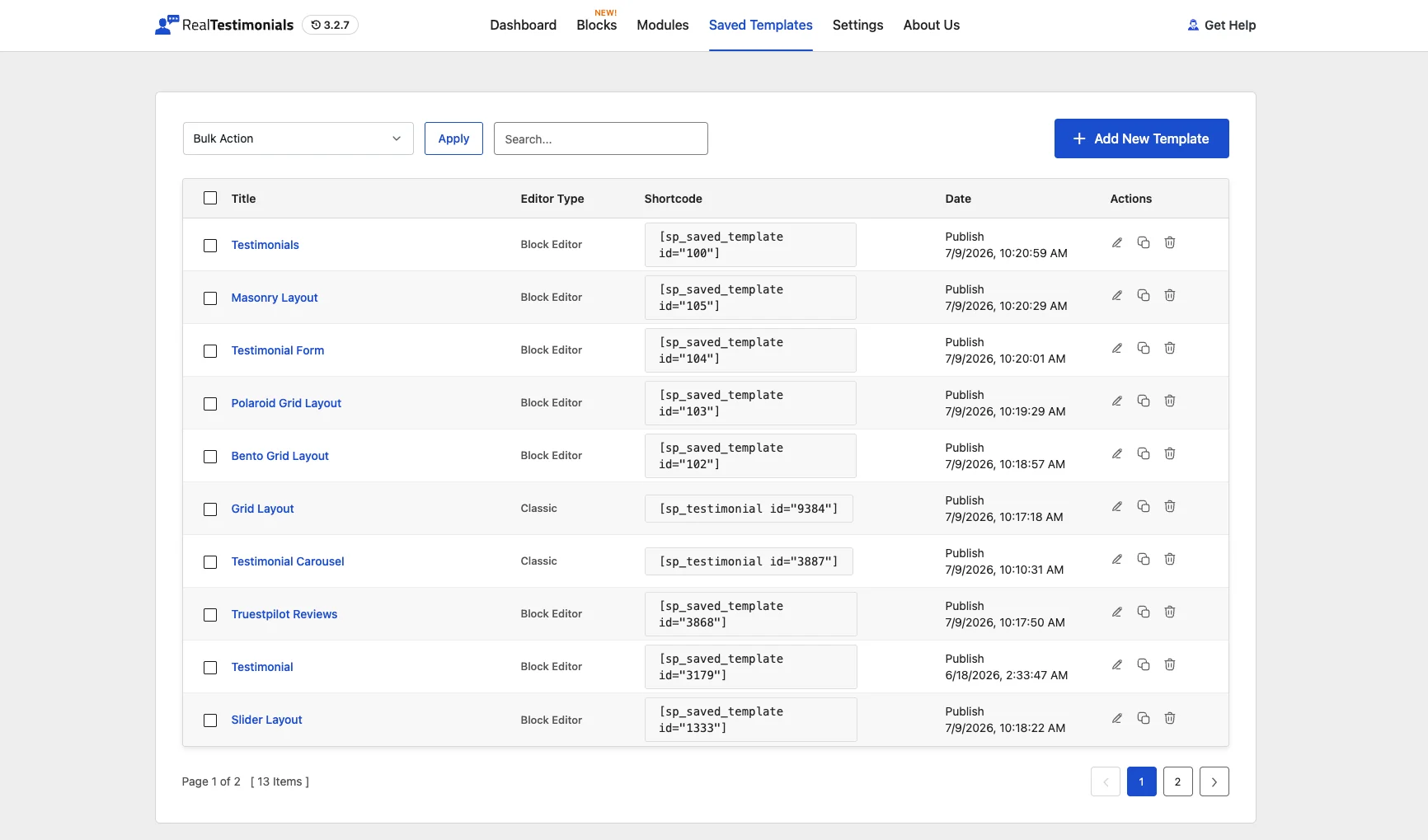
The Saved Templates screen is a full table, not just a list:
- Search — filter templates by name.
- Bulk actions — select multiple templates, then Publish, Draft, or Delete them together with the Apply button.
- Editor Type column — appears automatically once you have any classic-shortcode templates, so you can tell block-editor and classic templates apart at a glance. Classic entries use the older
[sp_testimonial id="…"]shortcode; block templates use[sp_saved_template id="…"]. - Per-row actions — Edit, Duplicate (creates a draft copy titled "(Copy)" to tweak separately), and Delete (asks for confirmation first — deletion is permanent).
- Copy shortcode — click the shortcode next to a template to copy it, ready to paste anywhere. A brief "Copied!" confirms it worked.
- Date column — shows each template's status and when it was last modified.
- Pagination — long lists are paged 10 per screen, with a count of total templates at the bottom.
Templates are ordinary posts under the hood, so bulk actions work the way they do elsewhere in WordPress: Draft keeps a template but stops its shortcode from showing anything on your live site, and Delete removes it for good.
Related pages
- Modules — enable or disable Saved Templates.
- Dashboard overview